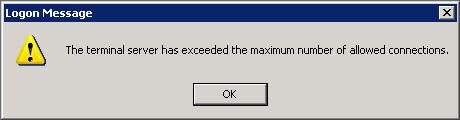
ERROR The terminal server has exceeded the maximum number of allowed connections
When a user establishes a Remote Desktop connection to the WHS this connection will remain active until the user selects “Log Off” from the Start Menu. If a user simply closes the remote desktop window when they’re finished, that username will still remain logged on.
The software running on the WHS to facilitate the Remote Desktop connection will only allow for up to two simultaneous sessions. Active and disconnected sessions are calculated in this connection limit as is the Administrator account also. The console session, however, does not count against the connection limit.
If a third attempt is made to login to the server, the dreaded “The terminal server has exceeded the maximum number of allowed connections” error will be shown to the user, and they will be unable to complete the login process. You can’t even connect to disconnect the old sessions BUT there is a way around this:
Simply click OK to the error message and wait for unto 30 seconds for the window to close then simply type the following in a Start – RUN or CMD Prompt on your client machine.
mstsc /v:00.00.00.00 /f -console
Replace 00.00.00.00 with your server’s IP Address or server name. e.g.SERVER
Type in your administrator password. This will then connect you to the Console Session on the server and allow you to remote control the machine again.
Once in Click Start, point to All Programs, point to Administrative Tools, and then click Terminal Services Manager.
In the left hand column you should see your server name. Click on it once. Note the Users Tab in the right pane.
You should see a list of users. You need to reset the two “Disconnected” users. You can do this by right clicking the disconnected user and selecting “Reset.” You should now be able to connect with RDP again after Start – Log Off.
When logging in under this special Console session always kill the inactive sessions first, because if you get disconnected again you will have to connect your monitor, keyboard and mouse.
Only use this session to terminate the other two sessions and not for any other use.
In future when you are done with a Remote Desktop session on WHS, you should always use “Log Off” rather than disconnecting by closing the RD window with the X as this will disconnect from the session but leave it active.
P.S. You could also use the easy option and just reboot the Windows Home Server.
Share this WHS Article with Others:


Is it possible to increase the number of allowed connections to a higher number, e.g. 5 to decrease the liklihood that you would have to perform this reset proceedure?
Hi markvader,
Unfortunately it is not possible to increase the number of allowed connections to a higher number. I am afraid with are stuck with 2 only.
Brilliant! It works!
Hi Mike Oesch,
Glad I could be of service.
Thanks a lot. You saved my life.
Hi Waqas Murtaza Butt,
I’m glad I could help you.
Hi Philip,
Nice work. Got a related query if you can help. If a user receives the “exceeded the maximum number of allowed connections” message, does it get logged to any event log?
It’s not really a login failure, so I can’t seem to find it in security logs. Am I looking in the wrong place?
Hi Jeff,
The only places I could find on the server that has logged info is in Event Viewer, Security items and in Terminal Services Manager, This Computer branch, “your server name”, and on the right hand side the Sessions tab.
This info is very helpful! Especially in a multi windows server environment like our office and the sys administrator is always missing in action hahahaha, Thanks a lot!
Hi ian nix,
Glad we could be of service. Sys administrator, who are they lol.
Thanks for the great info it works fine
thanks a lot one more time thanks MR.Philip Churchill
Hi bharathy,
Glad we could help.
you are the man, this saved me
Hi Ed,
Glad we could help.
really just want to say big thank you. you save my time of traveling to office from home just to physically logging the server to kill those inactive user before I can logging from home again. Thanks again.
Add me to the list…
ditto ditto ditto
Thank You for posting this for all of us…
Bingo.. this is exactly what I needed.. Very well written.. thanks Philip..
Thanks man.
Help me to resolve the 2 connection limits and find out who is hogging the connection~!
Thanks a ton! This was awesome.
Nice! And as an added bonus, I got to make it look like I knew something the boss didn’t. 🙂
Thanks Philip. Big help!
This is some useful info, as the users have a habit of simply closing the connection as opposed to logging off.
Wish the number could be increased though.
Thx alot.
Good tip! Before I knew this I used the free service of http://www.logmein.com to log in as administrator to log off the inactive users.
Please Philip Churchill
maybe there is a way to increase the connections more than 2?
because there is a teb (unlimited connections)
can you help me
Haider
The way remote desktop for administration works in terminal services is that you are allowed: 1 console session for admin purposes and 2 rd sessions for users. The only way to increase this number is to install terminal server and add some cals to the server. Once you install terminal server and switch to remote desktop for apps instead of administration, you will be given a grace period, something like 90 or 180 days, before having to setup the licensing. Hoever, this is only meant for giving you time to set this up, it isn’t intended soley as a free grace period.
Hi Philip,
i did, as you have explained, but still got the same error message of – the terminal server has exceeded the maximum number of allowed connections. any solution for the same. Thanks.
This doesn’t seem to work on a Windows 2000 server. Any ideas (other then upgrading of course).
THANKS. I choose the easy way: reboot my server. because i use WIN2K.
thanks
it was very understanding and helpfull article
Thanks Philip for sharing your knowledge and helping others.
dont know where is a difference, but in my client I need to type /admin comand instead of -console… so, the full url are :
mstsc /v:00.00.00.00 /f /admin
btw, You can always check available keys using
mstsc /?
YOU ARE MY HERO
I have written a GUI that does this for you if anyone is interested. It allows you to query a server by name or IP and kill a specified user. It can be found at: http://www.jonathanrhodes.net/
Aaah! Almost… This is the closest I get…
I get a user login box, but whatever I type I still get ‘Exceeded maximum number of connections’
The server is in another country so switching it off is not really an option, its also behind a firewall where only port 80 & 3389 are open.
Any ideas?
Thanks! It was a very helpful article! 🙂
THANK YOU!!! You just saved me 20 minutes drive time. More importantly, I now know how to fix the issue the next time I forget to logout (cause you know it’s gonna happen).
i want to renew this server ks200724.kimsufi.com
but i don’t know how to renew it,can any one pls explain to me the process i could renew this server ks200724.kimsufi.com
Arrgh, I wish I had this information the last time it happened! Could not figure out what to do for the life of me; had to reformat in order to connect again. Thanks for the info though. Now I know exactly what to do if this happens again.
VERY useful info!
Thanks a lot.
🙂
Is there a way to automatically log of a user/session after X amount of inactivity?
GREAT TIP! Thanks a lot!
Michael go to the user properties and under the “sessions” tab you’ll find what you want!!! 🙂
I have read this entire thing, and unless I TOTALLY missed it . . did anyone mention install the admin pack (any server \\homeserver\admin$\system32\adminpak.msi ) and use tsadmin.exe? I saw where someone wrote an app, but I think Micro$ofts “supported” app would be a better way to go . .unless again . . .I missed something. with this you can disconnect sessions until your heart stops. – R
terminal server has exceeded the maximum number of allowed connections
Is that an answer to my post? If so . . . . huh?
Big Help!and Thanks alot
But ,I want to know why we cann’t increase the number of allowed connections.
Khaing: Quonting MicrosoftJunkie:”The way remote desktop for administration works in terminal services is that you are allowed: 1 console session for admin purposes and 2 rd sessions for users. The only way to increase this number is to install terminal server and add some cals to the server. Once you install terminal server and switch to remote desktop for apps instead of administration, you will be given a grace period, something like 90 or 180 days, before having to setup the licensing. Hoever, this is only meant for giving you time to set this up, it isn’t intended soley as a free grace period.”
How can I check what users are using the 2 sessions?
Thanks in advance
Rafael, you should be able to see what users are using the two sessions by following the instructions above.
See the original notes, “… In the left hand column you should see your server name. Click on it once. Note the Users Tab in the right pane. You should see a list of users.”
This is a nice solution but I want to know, How can I increase the limit of users on terminal server (O.S. 2000 server) ?
Please help me.
Thanx & Regards
Romy.
Hello, it’s a nice temporary solution.
So, I changed the parameter:
“maximun connections” on the network adaptor icon from Terminal Services Configuration, I verify the registry (MaxInstanceCount) and the value was changed.
But I think that the limit is always 2.
Have you got an idea about?
Best regards.
Thanks a lot!
Thanks a lot for sharing this. You saved me
Thank you very much. It does saved lots of my time…
You saved me… Cheers
Thanks for sharing…
thanks for the information.
saved my life bud, thanks!!!
did have to use this: mstsc /v:00.00.00.00 /f /admin
If the above solution did not work as it not worked for me i extended the command admin switch
and login with Admin userid and password
mstsc /v:xxx.xx.xxx.xxx /admin
Replace xxx.xx.xxx.xxx with your IP Address
Happy logging
You are the man….thanks a lot buddy..You saved me…
A quick way to check logons is to go into task manager, select the last tab (Users) and you can see who is logged on and/or disconnected.
You also get the option to log them off and hence reclain the termin server session
I just find it much quicker to check this
Cheers
It works! just works. Thanks
You have nol idea how much of a headche you just saved me from. mstsc /v:00.00.00.00 /f /admin is what I had to use. Thanks a million…IT folks will ALWAYS SAVE THE WORLD. Peace!!!!!!!!!!!!!!!!!!!!!!!
Thanks!
THIS IS THE LIFE SAVER RIGHT HERE
log off remote desktop RDP Terminal exceeded
run:
mstsc /v:00.00.00.00 /f /admin
replace 00 with your server IP
thank you all, thank you james!
I use the admin switch and it works great! i am using XP. and our users always leave the connection on in the windows 2003 server! thank you very much for the tip!!!
Thanx alot mate.Saved My life
ohh….thank you so much…saved my day!!
Oke it works fine.
Tnx.
Very Nice. Thank You.Saved my day 🙂
you write:
Khaing: Quonting MicrosoftJunkie:”The way remote desktop for administration works in terminal services is that you are allowed: 1 console session for admin purposes and 2 rd sessions for users. The only way to increase this number is to install terminal server and add some cals to the server. Once you install terminal server and switch to remote desktop for apps instead of administration, you will be given a grace period, something like 90 or 180 days, before having to setup the licensing. Hoever, this is only meant for giving you time to set this up, it isn’t intended soley as a free grace period.”
But where to get this or buy these cals for WHS?
need 3 more thx
for 2k use the following:
qwinsta /server:0.0.0.0
rwinsta /server:0.0.0.0 session_num
replace 0.0.0.0 with ip of server
session _num = session_num as displayed in the output of qwinsta.
Thanks a lot. You saved my time
Thank You, You saved the day
This brilliant I was about to reboot the server you have just made my work more easier than before.
Thank You, very much
This was great!!! This worked if my client was win2k. for xp mstsc /v:servername /admin worked.
thanks Jasvinder
Hi – wondered if anyone could help me out.
I need to find out how many concurrent client connections Windows Server 2008 can handle as we are currently bringing our hosting in house and thinking of buying a box with windows server 2008 R2 on it.
I understand that this all depends on your set-up but we currently have about 50000 unique visits a day and I need to find out how many unique visitors we could have if we brought our hosting in house.
I have been looking for an answer for about a week now and keep drawing up blanks so any help would be really appreciated.
Thanks,
Mark
Many blessings for the /admin entry — that worked for me.
Another thing you can do is bring up a command window
and run:
qwinsta /server:<server name or IP>
This will list whose connected. After finding one that can
be removed, get the entry from the ID column and run:
rwinsta /server:<server name or IP> <ID>
It worked this way for me:
mstsc /v:[SERVERIP] /f -console
I’m using XP for the client and the remote box is running WIN2000. It’s not working 🙁 It connects but when I input the log in credentials, it gives me the same error.
Hi,
I got the error message “The terminal server has exceeded the maximum number of allowed connections” while trying to open remote desktop from my desktop (win xp sp3). So i have execute the command “mstsc /v:00.00.00.00 /f -console”. Even though i am getting the same error message. Please suggest me how to fix this problem.
It does not work for me…
It will open the RD window however if you already have 2 logged in RD clients you will receive the same error…
Has anyone that is claiming it works actually tried to use this console command code while having 2 users already logged in via RD.. If so it will not work, Maximum 2 exceeded error will still pop up even as Console login…?
mstsc -v:0.0.0.0 -admin This will work to get a 3 login working on Windows Server 2003… the /console login has never worked for me personally…
It does not work for me either…
Then I do qwinsta /server: it gives me an error “Error [1722]: The RPC server is unavailable”.
I’m trying to shutdown sessions on a Windows 2000 Server.
Any help would be appreciated as the server is in the UK and I am in Australia!
Tony;
If you have another server, probably on the same domain (mebbe?) you can use the following app;
start -> run -> %SystemRoot%\system32\tsadmin.exe
I’ve found that to be easier than the command line.
Otherwise, you will have to auth to the server first (a net use command works, amongst other things) to be sure your admin account authenticates before you can list/disconnect the remote sessions.
If you need a hand, shoot me an email (nathan.murphy at framegroup.com.au) and I’ll see if I can help. Always willing to assist another Aussie.
Perfect…Perfect…Perfect 🙂
I was stuck at my work as I cant have access on the server itself except remotely.
Thanks so much for your support
Best Regards,
M.Mokhtar
Umm, I think you all are just making this WAY more difficult then it needs to be. Why not just run the WHS Console, click options, then click “Reset the Windows Home Server Console…”???? This works everytime for me and I always just close RDP using the “x”. Sometimes Microcrap builds in solutions, you don’t always have to make it so complicated.
In my case I’m running Windows 7 and am having a problem even getting into the WHS Console because of network problems, so I can’t use it to reset the Remote Desktop Connection. I’ve tried several of the suggestions but still get the same message. Anything special needed for Windows 7?
Are you able to log in at the home server itself or are you running totally headless? If you can log in at the server, run windows update. There has been a lot of work done to make win7 work great with WHS. You will need to copy the “new” connector software from the software folder and install it on the client. If you are having network issues not related to the server then this probably wont work as the connector software needs to “see” the WHS to install. Let me know if I can be of anymore help.
The admin console procedure works (Windows Server 2003 R2), thanks a lot! 🙂
However in order to use the qwinsta and rwinsta commands you need to have network access to the RPC port of the server. It is unfortunately very often blocked by firewalls in order to avoid hacker attacks. So do not count on these two commands in every occasion.
No, it does not work
sometimes it happens
very very useful information i got here, i had host my site on VPS and almost getting the issue which is described here, and due to which my site got down and i can’t do anything but with this i can again access my VPS .. Thanks a lot
hi
i use in server 2003 but problem my rdp user login
my server 55 user login no problem but login 56,57 user not loding user profile error
Entered:
mstsc /v:[remote.ip.address] /f -console
Got:
Sign-in for Remote Desktop
Entered:
Credentials
Got:
“The terminal server has exceeded the number of allowed connections.” Again.
These instructions:
Fail.
The instructions are for Windows Home Server.
Nice fail though Singlestone. If you use the -admin switch instead of -console it should work for Server 2003, etc.
Thanks Bobby, it worked for me 🙂
Thanks it works 🙂
Thanks for good advice. Worked for me with -admin!
-admin switch is working. Thanks Bobby!!!
Thanks, it works for me. ^^
Worked fine for me on Windows Server 2003 R2. Thanks for a great article!
Thanks for your valuable information. it’s working fine.
Works like a charm in 2k3 with
mstsc /v:[remote.ip.address] /f -admin
Thanks for sharing
-console didnt work for me. was almost frustrated till i tried -admin and it, like you said worked like a charm. thanks very much for sharing.
Nice Tip , works for me …
Thanks
Thanks you very much !
I found another solution to work around this problem. you just need to to query the sessions and then reset any session you want and you can easily login: check the under given URL:
http://www.itoperationz.com/2010/10/terminal-server-has-exceeded-the-maximum-number-of-allowed-connections/
Thanks .. a Ton..
Useful Piece of Information
Thanks , I worked . other wise I would have landed in trouble .
Works Great!
mstsc /v:myserver.no-ip.org /f -admin
Windows Server 2003 Standard
Thanks!
Cool..
Worked like charm…
Thank you. 🙂
Struggling with it for awhile, and then read the comments from other user, and it worked. I am on a Vista machine.
Thanks for the helpful tips!
I have Terminal Services Manager installed under Administrative Tools. I highlighted “This Computer” at the top of the list, clicked “Actions” and “Connect to Computer…” and typed in the balky server’s name. The list showing two disconected sessions appeared, allowing me to diconnect them without fully logging into the remote server.
Success!
thanks very much it works for me
it worked great. mstsc /v:ip address /f -admin.
Thanks for valuable help.
Thanks a lot for the information, it saved me a lot of time: the server is 50 miles away: no one around to help me,
we have the same problem… they call it save by the miles….
Thanks a lot worked in “mstsc /v:ip address /f -admin”
Thanks a lot worked in “mstsc /v:servername /f -admin”
tnks
hi..
it worked for me perfectly 🙂
Thnks…
Simply click OK to the error message and wait for unto 30 seconds for the window to close then simply type the following in a Start – RUN or CMD Prompt on your client machine.
mstsc /v:00.00.00.00 /f -console
Replace 00.00.00.00 with your server’s IP Address or server name. e.g.SERVER
Type in your administrator password. This will then connect you to the Console Session on the server and allow you to remote control the machine again.
Thanks, worked a treat!
Thanks pro
-console did not work for me.
-admin WORKED like a charm, and i think more than on Server 2003 – SOLVED.